
Getting started
Your first meeting.
Your next clear step.
A simple routine for turning a conversation into a record you can find, check and use.
KEEP THE GOOD PARTS.
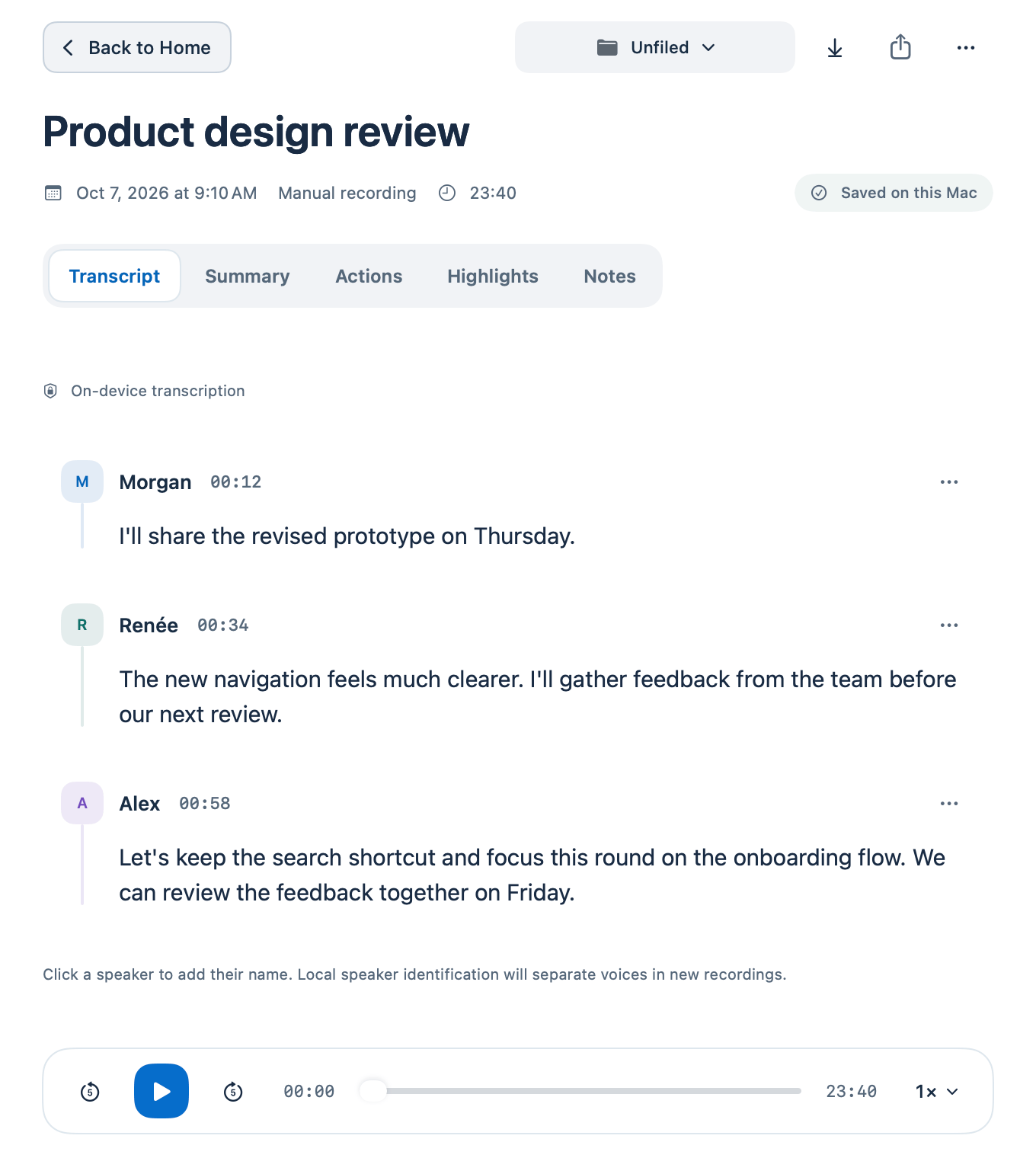


From the first recording to a clear next step.
Start with a sound foundation.
01
Prepare your Mac
Open Settings → Guided setup. Check microphone and call-audio permissions, choose the spoken language and prepare its speech model if prompted. Enable Keep audio for playback when you want to listen later.
02
Capture the conversation
Choose a folder and select New recording, or press ⌘R. Join the call yourself and tell participants you are recording. Check the recording indicator, use Pause for breaks and Stop when finished.
Review before you rely on it.
Keep the original close
Read the Transcript, correct important wording and rename speaker labels. A timestamp returns to retained source audio. Hover a passage or open its three-dot menu to highlight, bookmark or add a note.
Give AI a specific job
Choose a summary template or ask which decisions remain open. Read the coverage note and open cited passages. An answer can use selected excerpts, so check the source before acting.
Save a next step you can use.
01
Review an action
In Actions, open Find actions in the transcript. Use Quick scan or an available assistant, check each quotation and edit the task. Choose an owner or date when known, then save. Nothing is assigned to another person automatically.
02
Keep it findable
Give the conversation a recognizable title and folder. Press ⌘K to find it later. Prepare a follow-up draft, review it and copy or export it to the tool you use. Zimlo does not send the draft for you.